How to Find the Best Wi-Fi Channel (2.4 GHz and 5 GHz)
A crowded Wi-Fi channel slows everyone on it. Here is how channels work, which ones to use on 2.4 GHz and 5 GHz, and how to find the quietest one near you.
Your Wi-Fi is fine all morning and turns to treacle at eight in the evening. Nothing in your home changed. What changed is that everyone around you came home and switched on their own Wi-Fi.
Think of channels as lanes on a road. Every network nearby picks a lane. When several networks share yours, they take turns talking, and everyone in that lane waits. Moving to a quieter lane is one of the few genuinely free speed improvements left.
Why 1, 6 and 11 keep coming up
On the 2.4 GHz band the lanes are painted badly. Each channel is 22 MHz wide, but the channels start only 5 MHz apart, so most of them physically overlap their neighbours.
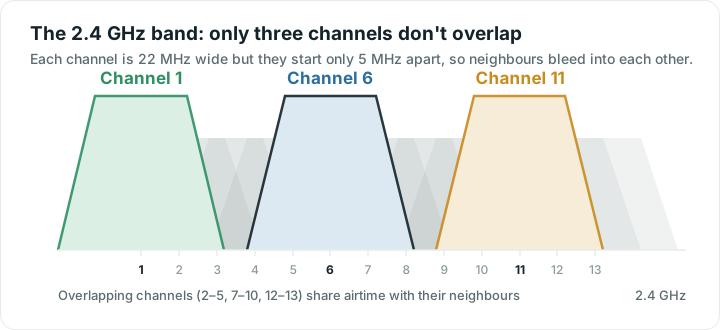
Look at the diagram and the rule explains itself. Channels 1, 6 and 11 are the only three that sit side by side without stepping on one another. Picking channel 3 does not find you an empty lane; it puts you half in channel 1 and half in channel 6, colliding with both.
In Europe and many other regions channels 1 to 13 are available, and some people use 1, 5, 9 and 13. That works, but only if your neighbours do the same. If everyone around you is on 1, 6 and 11, join them rather than straddling two lanes.
5 GHz: many more lanes
The 5 GHz band has far more channels, and they genuinely do not overlap, so crowding is rarely the problem it is on 2.4 GHz. Two things are worth knowing:
- DFS channels (roughly 52 to 144) are shared with weather and airport radar. Routers may use them, but must move away the instant radar appears, which shows up as a brief dropout.
- Channels 36 to 48 and 149 to 165 carry no such rule and make reliable defaults.
6 GHz: the empty motorway
Wi-Fi 6E and Wi-Fi 7 routers add a 6 GHz band with a lot of room and almost no interference. The catch is that both your router and your device need to support it, and the range is shorter again. More in 2.4 vs 5 vs 6 GHz.
How to find the quietest channel
- Scan what is around you. On Android, Wifify's Wi-Fi around you screen groups nearby networks by channel and counts the neighbours in each lane.
- Weigh them by strength. A loud neighbour one wall away matters far more than a faint one across the street. Three strong networks in your lane hurt more than eight distant ones.
- Pick the emptiest lane. Wifify suggests one for you.
- Change it in your router settings, usually under Wireless or Advanced.
- Measure the difference. Run a speed test in the same spot, at the same time of day, before and after. Without that, you are guessing.
Channel width: 20, 40, 80 or 160 MHz
Width is how wide your lane is. Wider lanes carry more at once but overlap more neighbours, which is a bad trade in a crowded area:
- 2.4 GHz: use 20 MHz. Wider settings collide with nearly every other network nearby and usually end up slower.
- 5 GHz: 80 MHz suits most homes. 160 MHz is faster in theory and finds interference more easily in practice.
- 6 GHz: go wide. The band is empty enough to make it worthwhile.
Signs your channel is the problem
- Speeds are fine early in the morning and poor in the evening.
- Video calls stutter even though your signal shows as strong.
- Your router is slow to answer while your signal is good.
- A scan shows three or more strong neighbours sharing your lane.
That third one is the giveaway. A strong signal with a slow router response almost always means airtime is being shared, not that your signal is weak. If your signal is genuinely weak instead, that is a different fix: see what signal strength means.
What if every channel is busy?
In a dense block of flats, every 2.4 GHz lane really can be full. Then:
- Move everything that can move to 5 GHz, or 6 GHz if your gear supports it.
- Put stationary devices such as the TV, console and desktop on a cable. Every device you take off the air gives the rest more room.
- Consider a mesh system with wired links between the points, so each radio only has to cover a short distance.
Should you just leave it on Auto?
Auto channel selection has improved and many modern routers do a reasonable job. The weakness is that some choose once at start-up and never reconsider. If your Wi-Fi reliably slows at the same time each evening, your router may have picked a lane that was quiet at breakfast and is busy at dinner. Restarting it forces a fresh choice; setting the channel by hand makes the choice stick.
Quick answers
Which Wi-Fi channel is best for 2.4 GHz?
Channel 1, 6 or 11, because they are the only three that do not overlap each other. Pick whichever of the three has the fewest strong networks near you. Any other channel overlaps two lanes at once and usually performs worse, even if it looks empty in a scan.
Does changing the Wi-Fi channel actually make it faster?
It can, but only when crowding is the problem. If your channel is shared with several strong neighbours, moving lanes can make a clear difference, especially in the evening. If your signal is weak because you are far from the router, changing channel will not help at all.
How do I know if my channel is crowded?
The classic sign is good speed next to the router but stuttering calls in the evening, with a strong signal and a slow router response. On Android, a Wi-Fi scan showing three or more strong networks on your channel confirms it.
Should I use 20, 40 or 80 MHz channel width?
Use 20 MHz on 2.4 GHz, because wider settings overlap almost everything nearby. Use 80 MHz on 5 GHz for most homes. Go wider only on 6 GHz, where there is enough empty space for it to pay off.