Channels, and why your neighbours slow you down
Wi-Fi channels are lanes, and neighbours sharing yours take turns with you. Why only 1, 6 and 11 avoid overlapping, and when changing channel helps.
Your Wi-Fi is fine all day. At seven in the evening it falls apart. Nobody in your home changed anything, but everyone in the building came home and switched on their own routers.
Wi-Fi runs on lanes
The airwaves Wi-Fi is allowed to use are divided into channels. A channel is a slice of frequency: think of it as a lane on a road. Your router picks one lane and does all its talking there.
Two routers in different lanes can talk at the same time without hearing each other. Two routers in the same lane cannot. They take turns.
Taking turns is not a disaster. It is how Wi-Fi is designed to work, and it is the same politeness your own devices use with each other. But every turn your neighbour's router takes is a turn yours spends waiting. With three or four networks sharing a lane, the waiting adds up and your speed drops even though your signal never moved.
Why 2.4 GHz only has three real lanes
Here is where it gets awkward, and it is the most useful thing to know about channels.
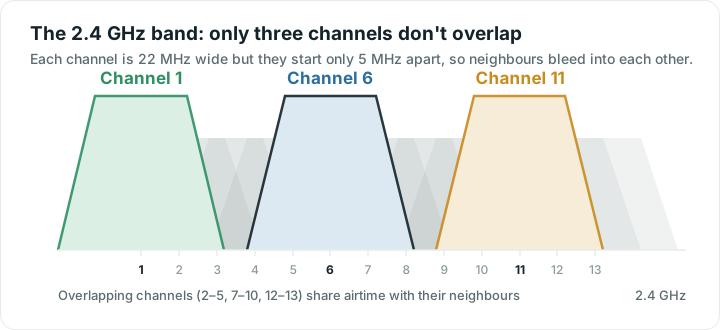
The 2.4 GHz band is carved into 13 numbered channels, 11 in the US. That sounds like plenty. It is not, because each channel is wider than the spacing between the numbers. A channel is about 22 MHz wide, but the numbers sit only 5 MHz apart.
So channel 2 overlaps channel 1. Channel 3 overlaps 1 and 2. And so on up the band. Two routers on channels 1 and 3 do not take neat turns, because they cannot cleanly hear each other. They bleed into one another and produce noise, which is worse than sharing properly.
Count it out and only three channels are far enough apart to avoid overlapping at all: 1, 6 and 11. That is why those three numbers turn up everywhere. They are not magic. They are simply the only three that fit side by side without touching.
The practical result: if your router sits on channel 3 or channel 9, it is not tucked into a gap. It is interfering with two sets of neighbours at once. Moving to 1, 6 or 11, whichever is quietest near you, is usually a small free win.
5 GHz and 6 GHz have much more room
The 5 GHz band has far more channels, and they are genuinely separate by default. 6 GHz has more again. In a flat where 2.4 GHz is packed with twenty networks, 5 GHz might have three.
That is a large part of why 5 GHz feels faster. Some of it is raw capacity. A lot of it is simply having fewer people in the lane.
There are two catches. Higher bands do not travel as far, so the quiet lane may not reach the back bedroom. And routers using wider channels, 80 MHz instead of 20, go faster but take up more room, which makes collisions likelier in a crowded building. Wider is not always better.
Should you change your channel?
Sometimes. It is worth checking when:
- You live in a flat or a terraced street with many networks nearby.
- Speeds drop predictably at busy times of day.
- The problem shows up on 2.4 GHz but not on 5 GHz.
It is probably not the answer when the connection is slow next to the router, slow on a cable, or equally slow at every hour. That is a different problem, and why your Wi-Fi is slow is the better starting point.
Most modern routers choose a channel automatically at startup, and many re-check occasionally. Automatic selection is decent but not clever: it picks based on what it heard when it booted, which may have been three in the morning.
How to find out what is around you
You need to see which channels your neighbours are using. A Wi-Fi analyzer app on an Android phone will list nearby networks with their channel and signal. Look for the channel with the fewest networks, and give more weight to the strong ones. A distant, faint network barely competes with you.
Then set your router to that channel in its settings page and re-test. Run a speed test before and after, at the same time of day, standing in the same spot. Without that, you are guessing.
One honest limit: on iPhone, Apple does not let apps scan for nearby networks at all. No iOS app can show you a neighbour list or a channel map, whatever its description suggests. If an iPhone is all you have, your router's own admin page or app is the place to look, or borrow an Android phone for ten minutes.
Keep expectations sensible
Changing channels helps when congestion is genuinely your problem. In a detached house with no neighbours in range it will do nothing at all, because nobody was ever in your lane. It is a free thing to try, not a cure for everything. The tools will tell you whether congestion is even in the picture before you start changing settings.
Quick answers
What is the best Wi-Fi channel to use?
On 2.4 GHz, pick whichever of 1, 6 or 11 has the fewest and weakest networks near you. Those three are the only ones that do not overlap. On 5 GHz there are many more usable channels, so almost any quiet one is fine.
Why do channels 1, 6 and 11 matter so much?
Because 2.4 GHz channels are about 22 MHz wide but spaced only 5 MHz apart, so neighbouring numbers overlap. Only 1, 6 and 11 are far enough apart not to touch. Using anything else means interfering with two groups of neighbours at once.
Will changing my channel make my Wi-Fi faster?
Only if congestion was the problem. In a busy block of flats it can make a clear difference. In a house with no networks nearby it will change nothing, because there was nobody sharing your lane to begin with.
Can I see my neighbours' Wi-Fi channels on an iPhone?
No. Apple does not allow apps to scan for nearby networks on iOS, so no iPhone app can show you a channel map. Use your router's own app or admin page, or borrow an Android phone to take a look.