How to See Who's on Your Wi-Fi (and Kick Off Devices You Don't Know)
Worried someone is using your Wi-Fi? Here is how to see every device on your network, identify the ones you do not recognise and lock out intruders for good.
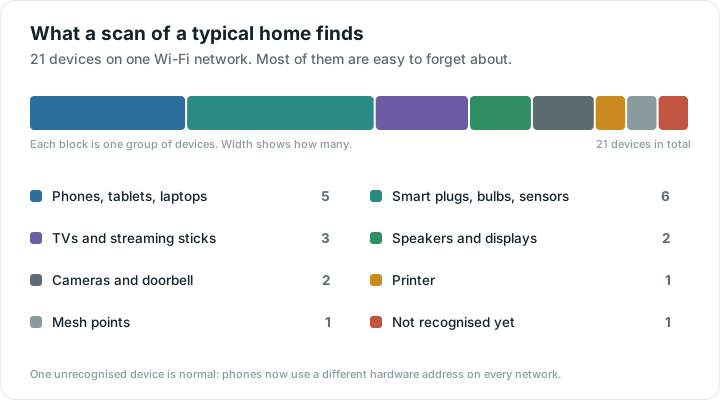
You open your router's device list expecting five things and find twenty-one. Half of them have names like "ESP-8A3F21" or nothing at all. It looks like a break-in.
It almost never is. A typical home now runs 15 to 30 connected devices, and most of them announce themselves badly. Here is how to account for every one.
Option 1: a network scanner app
The quickest way is an app that scans your network from your phone. Wifify's Devices tab checks every address on your Wi-Fi and recognises devices by the names they announce, so you see "Kitchen speaker, Google Nest Mini" instead of a string of numbers. It also lets you rename devices and flags anything new that joins later.
Option 2: your router's device list
Every router has a list of connected devices, usually under Connected devices, Clients or DHCP. Open your router's settings page or its own app. The list is authoritative, because the router hands out every address itself, but the names are often raw.
How to identify a device you do not recognise
- Look at the name and the maker. "HP OfficeJet", "Chromecast" or "Sonos" usually give it away. A name that is just letters and numbers is often a cheap smart plug or sensor.
- Turn things off one by one. If the mystery device disappears when you unplug the smart television, you have found it. This is slow but never wrong.
- Check your own phones. Modern iPhones and Android phones use a private, randomised hardware address on each network, so the same phone can look like a brand new device after an update or a reset. This is the single most common cause of a mystery entry.
- Remember the gadgets. Smart plugs, bulbs, thermostats, doorbells and robot vacuums are easy to forget, and they are usually the nameless ones.
Devices people forget about
- Smart televisions, streaming sticks and games consoles
- Smart speakers and displays
- Wi-Fi light bulbs, plugs and switches
- Video doorbells, security cameras and baby monitors
- Printers, which connect to Wi-Fi by default
- Robot vacuums, air purifiers and washing machines
- Smart watches, e-readers and old phones in drawers
- The router's own mesh points and extenders
Signs someone may actually be using your Wi-Fi
- A device you cannot identify appears again and again, especially at night
- Your connection is slow when nobody at home is using it
- Your router's activity lights flash while all your devices are off
None of these is proof on its own. Smart-home gadgets update themselves at odd hours, and that accounts for most night-time activity. But if a device stays unexplained after you have switched everything off one at a time, act on it.
What a neighbour on your Wi-Fi can and cannot do
Worth being clear about, because it is usually less dramatic than people fear. Someone on your network can use your bandwidth, which is annoying, and can reach devices that are open on your local network, such as a printer or a badly configured camera or file share. That last one is the real risk, and it is why you should not leave a network scanner's findings unexamined.
What they cannot do is read the contents of what you do online. Your banking, your messages and your email are encrypted between your device and the service, and sharing a Wi-Fi network does not change that. The same reasoning applies on public Wi-Fi, which we tested directly in what a stranger can and cannot see on open Wi-Fi.
Why blocking one device is not enough
Routers can block a device by its hardware address, but that address can be changed in seconds, and modern phones already change theirs automatically. Blocking is a quick fix. Changing the password is the real one.
If a device really is not yours
- Change your Wi-Fi password. Every device disconnects, and only people with the new password get back on. This is by far the most effective step.
- Use WPA3 or WPA2 security. Never leave a network open, and replace anything still using WEP.
- Turn off WPS. The push-button pairing feature has a long history of weaknesses.
- Give guests a guest network. It keeps visitors away from the network your computers and cameras sit on.
- Update your router's firmware. Updates close security holes, and plenty of routers never install them without being asked.
If you want to check the rest of your setup at the same time, our Wi-Fi safety check walks through what matters in a few questions.
Get told when something new joins
Checking once is useful; noticing changes is better. Wifify quietly learns your household's devices over the first day, then marks anything new so you can confirm it is yours or follow the steps above.
Quick answers
How can I see who is connected to my Wi-Fi?
Either open your router’s device list, usually under Connected devices, Clients or DHCP, or use a network scanner app on your phone. The router list is complete but often shows raw names; a scanner app can identify many devices by the names they announce.
Why are there so many devices on my network?
A typical home now has 15 to 30. Beyond phones and laptops, the list usually includes the television, streaming sticks, speakers, smart plugs and bulbs, the doorbell, cameras, the printer, a robot vacuum and any mesh points. Most homes forget at least half of these.
There is a device I cannot identify. Should I worry?
Usually not. Modern phones use a different randomised hardware address on each network, so your own phone can appear as a new device after an update. Switch your gadgets off one at a time to find it. If it is still unexplained, change your Wi-Fi password.
Can someone on my Wi-Fi see what I am doing?
Not the contents. Banking, messaging and email are encrypted between your device and the service, so sharing a network does not expose them. What they can do is use your bandwidth and reach anything left open on your local network, such as a printer or a file share.