Why Your iPhone Won't Show Wi-Fi Signal Strength (and What Works Instead)
Android apps show -58 dBm. iPhone shows three curved bars and nothing else. Here is what Apple actually allows, which old tricks are dead, and what to measure instead.
Ask an Android phone how strong your Wi-Fi is and it will tell you: -58 dBm, channel 36, 80 MHz wide, 866 Mbps link speed. Ask an iPhone the same question and you get three curved bars.
This drives people mad, and most of the advice online is wrong or out of date. Here is what is actually going on, from the inside.
The number an iPhone will not show you looks like this, and it is genuinely more useful than bars.
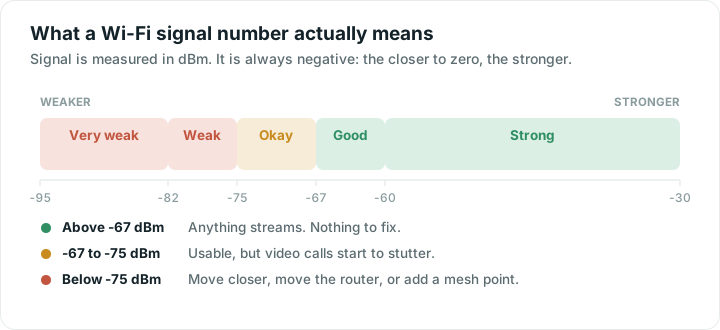
What Apple lets an app see
We build a Wi-Fi app for both platforms, so the difference is not theoretical for us. On iPhone an app can read:
- the name of the network you are on, but only after you grant location access
- your phone's address on the network, and your router's address
- whether you are on Wi-Fi at all
- anything it can learn by talking to your own network: how fast the router answers, which devices are online
And that is the list. An app cannot read the signal strength in dBm. It cannot see the channel, the channel width, the link speed, or the Wi-Fi version. It cannot scan for other networks nearby, so it cannot tell you your neighbours are sitting on your channel.
Android hands all of that over. Apple never has.
Why bars are not enough
Bars are a rounded-off version of a number the system keeps to itself, and the rounding is generous. On most phones, everything from a strong -55 dBm to a struggling -70 dBm shows the same full-looking display. By the time a bar disappears you are already in trouble.
That is fine for deciding whether to send a text. It is useless for the actual job: walking around your house to find where the signal dies.
The old tricks that no longer work
Field Test Mode. Dial *3001#12345#* and iPhone opens a hidden engineering screen. It is real, and it is cellular only. There is no Wi-Fi signal reading in there, no matter how many articles say otherwise.
AirPort Utility's scanner. Apple's own router app has a Wi-Fi scanner switch buried in iPhone Settings. It dates from an era when Apple sold routers, and it has not been meaningfully updated since. If it works on your iOS version, treat it as a bonus rather than a plan.
"Wi-Fi analyzer" apps on the App Store. Many have screenshots full of dBm graphs. Look closely and those are either Android screenshots, or readings from the app talking to a router it controls. No App Store app gets the number Apple withholds.
What to measure instead: how fast your router answers
Here is the useful part. You do not actually care about dBm. You care about whether the connection between your phone and your router is healthy. Signal strength is just the usual way to guess at that.
There is another way to measure the same thing, and iPhone allows it: send small messages to your router and time the replies.
A phone sitting next to the router gets answers in a few milliseconds. Walk away, put two walls in between, and those replies stretch out and start going missing entirely, because the phone and router are retrying at lower and lower speeds to be heard. The number climbs exactly where the signal falls.
Rough guide, measured against your own router on the same network:
| Router answers in | What it means |
|---|---|
| Under 20 ms | Strong. Nothing to fix here. |
| 20 to 40 ms | Good. Normal for a room or two away. |
| 40 to 80 ms | Getting thin. Video calls may wobble. |
| Over 80 ms, or replies going missing | Weak. This is where the dead zone starts. |
This is not a conversion table. You cannot turn 45 ms into "-72 dBm". It is a different way of asking the same question, and for finding dead spots it works just as well, because both numbers get worse in the same places.
The walk test
- Stand next to the router and note how fast it answers.
- Walk slowly to the far corner of the room you care about, watching as you go.
- Watch for the moment the number jumps, or replies start vanishing. That is a wall, a mirror, a fridge, or the distance itself.
- Repeat one room at a time.
You end up with a map of your home in five minutes, without any of the gear Apple says you cannot have.
If you really want the dBm number
Three options, all of them fine:
- Use a Mac. Hold Option and click the Wi-Fi icon in the menu bar. Signal strength, noise, channel and link speed, all there.
- Borrow an Android phone. Even an old one in a drawer works. Any Wi-Fi analyzer app on it will show the numbers, and the dead zones it finds are the same dead zones your iPhone has.
- Log into your router. Many routers list connected devices with their signal strength, measured from the router's side.
How we handle it in Wifify
On Android, the Signal screen shows dBm, bars and the live graph. On iPhone, the same screen shows how quickly your router answers, on the same live graph, with the same walk-around advice. We say on the screen which one you are looking at and why, because pretending the platforms are identical would mean pretending to have a number we do not have.
Both are free, and neither needs an account.
Quick answers
Can any iPhone app show Wi-Fi signal strength in dBm?
No. Apple does not expose signal strength to apps, so no App Store app can read it for the network you are connected to. Apps that display dBm are either showing readings from a router they control, or Android screenshots.
Why does a Wi-Fi app ask for my location?
Because iPhone treats the name of your Wi-Fi network as location-adjacent information, and only hands it to apps with location access. Without the permission, the network name comes back blank. It does not mean the app is reading where you are.
Does *3001#12345#* show Wi-Fi signal on iPhone?
No. Field Test Mode shows cellular information only, such as the mobile signal in dBm and the cell tower you are using. There is no Wi-Fi section.
What is a good router response time on Wi-Fi?
Under 20 ms is strong, 20 to 40 ms is normal a room or two away, and anything over 80 ms or with replies going missing points to a weak spot worth fixing.