How Wi-Fi keeps you safe
Your Wi-Fi password protects the air; the padlock protects the content. Two separate locks, and why a cafe sign-in page is neither of them.
The cafe Wi-Fi asks for your email address before it lets you online. You type it in, tick a box, and the page says you are connected. It feels like a security step. It is not one. That page exists to count you and to market to you, and it protects nothing at all.
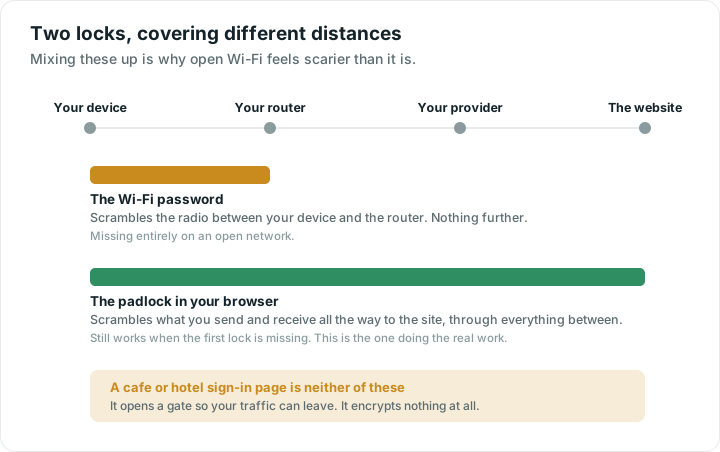
Two locks, two different jobs
There are two separate protections in play whenever you use Wi-Fi, and mixing them up is how people end up worrying about the wrong thing.
The first lock is the Wi-Fi password. It protects the air in your home or the cafe.
The second lock is HTTPS, the padlock in your browser's address bar. It protects the contents of what you send, all the way to the website.
They are independent. You can have one, both or neither.
The Wi-Fi password protects the air
When you join a network with a password, your device and the router agree on a private code and scramble everything they send each other over the radio. Someone nearby with the right equipment can still hear that radio traffic, because you cannot stop radio from spreading, but what they hear is noise.
That is the entire job. It covers the few metres between your device and the router, and not one step further.
The scrambling standards have names. WPA3 is current and the best available. WPA2 is still reasonable. WEP is broken and should never be used. Open means no lock at all. If your router offers WPA3 and your devices are recent, use it. If an older device cannot cope, WPA2 is a sensible place to sit.
On an open network, which covers most cafes, hotels, airports and trains, this lock is simply absent. The air is readable by anyone in range.
HTTPS protects the content
The padlock is the second lock, and it does most of the work these days.
When a site uses HTTPS, your device and that website scramble the conversation between themselves, end to end. The router does not see inside it. Your provider does not. Neither does a stranger sitting on the cafe network. They can all see that you connected to a particular site, and roughly how much data moved, but not what was on the page, what you typed, or what you sent back.
This is why open Wi-Fi is far less dangerous than it was a decade ago. Nearly every site now uses HTTPS by default, so the inner lock is on even when the outer one is missing.
What someone on an open network can still see:
- Which sites you visit, by name.
- When you visited, and roughly how much data moved.
What they cannot see, on an HTTPS site:
- Your password.
- Your messages, emails or card details.
- The content of the page itself.
Why a login page is not security
Cafe and hotel sign-in pages, the ones asking for a room number, an email address or a tick on some terms, are called captive portals. They control access. They do not encrypt anything.
A network can have a sign-in page and still be completely open on the air. That combination is common, and it is the most misleading setup you will meet, because typing something into a form feels like proving who you are. You are being let through a gate, not handed a key.
The same goes for a network named after a hotel or an airport. Names are free. Anyone can broadcast a network called anything they like, which is why "it had the right name" is not evidence of anything.
Sensible habits
- Look for the padlock before typing anything private, especially on a network you do not control.
- Use a strong Wi-Fi password at home, and change it if it is still the one printed on the sticker and the router is old.
- Turn off automatic joining for open networks, so your phone does not silently reconnect to something familiar-sounding.
- Keep devices updated. Most real attacks rely on known bugs that were fixed months ago.
- Take certificate warnings seriously. A browser saying it cannot verify a site's identity is the one moment to stop.
A VPN adds a third wrapper around your traffic, hiding site names from the local network and from your provider. It is genuinely useful on a network you do not trust. It also moves your trust to the VPN company rather than removing the need to trust anyone, which is worth knowing before paying for one.
Checking your own network
To see where your home network stands, the Wi-Fi safety check looks at the encryption in use and flags the obvious problems. To see what the outside world can tell about your connection, what's my IP shows the address every site you visit sees. And if you want to know what any of these tools record about you, the data page sets it out plainly.
Quick answers
Is public Wi-Fi safe to use?
It is much safer than it used to be, because nearly every site now uses HTTPS, which protects your content end to end regardless of the network. Someone nearby can still see which sites you visit, but not what you type or read. Check for the padlock before entering anything private.
What does the padlock in my browser actually mean?
It means the connection between your device and that website is encrypted, so nobody in between can read it. It does not mean the site itself is honest or trustworthy. A scam site can have a perfectly valid padlock.
Does entering my email on a cafe Wi-Fi page make it secure?
No. That page is a captive portal, which controls who gets access and often collects marketing details. It does not encrypt anything. The network can have a sign-in page and still be completely open on the air.
WPA2 or WPA3 at home?
Use WPA3 if your router and your devices support it, since it is the stronger standard. WPA2 is still reasonable and very widely used. Avoid WEP entirely, and avoid leaving your home network open.